The "My Panels" folder allows users to save commonly used designs so that they can be reused on any project. This folder acts as a template holder. Users have complete control over how they use the "My Panels" folder and can create sub folders for keeping all of their custom plates and panels organized.
Saving to the "My Panels" Folder To save a panel to your "My Panels" folder simply click on the SE icon in the top left corner and select "Save (Panel Name will appear here) to My Panels." A pop up will appear asking you to select or create a "Grouping", "Name" and the option to add a description. Panels saved in this folder will be saved with the unique part number assigned to the part on the day it was created.
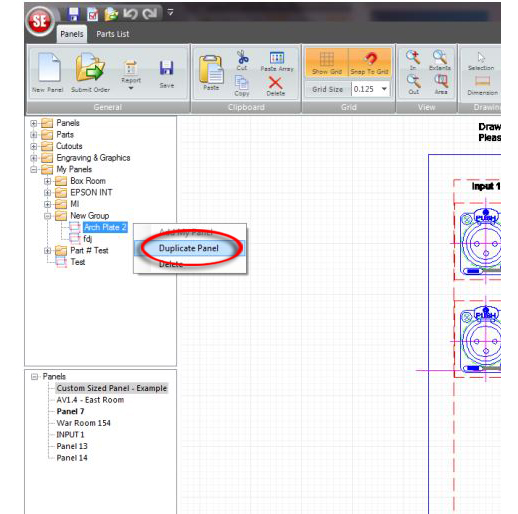
Re-Ordering a Panel If no changes need to be made to a panel saved in your "My Panels" folder, users can reorder the exact same panel by opening up the "My Panels" folder, selecting the panel name, right clicking on the panel and selecting "Duplicate." This will lock the panel down so that no changes can be made. If you need to make changes you must create a new panel and drag this panel to your work space.
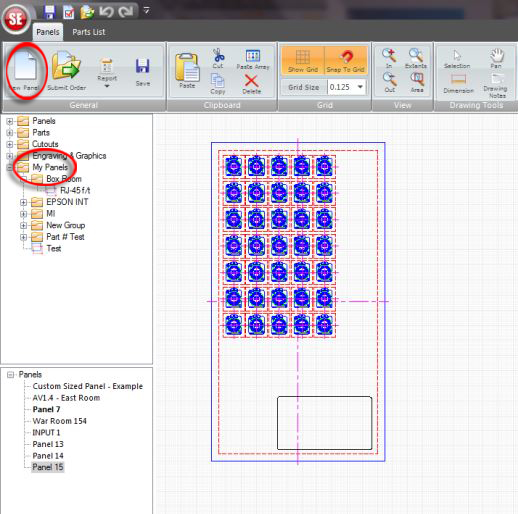
Creating a New Panel from Exisiting "My Panels" Panel Users can make changes to any panel saved in the "My Panels" folder by clicking on "New Panel" and dragging the desired panel over to the blank workspace. This will unlock the panel and allow users to make changes. This process will also assign the panel a new unique part number.
Have a suggestion for upgrades? We want to hear it!
Please e-mail us here.